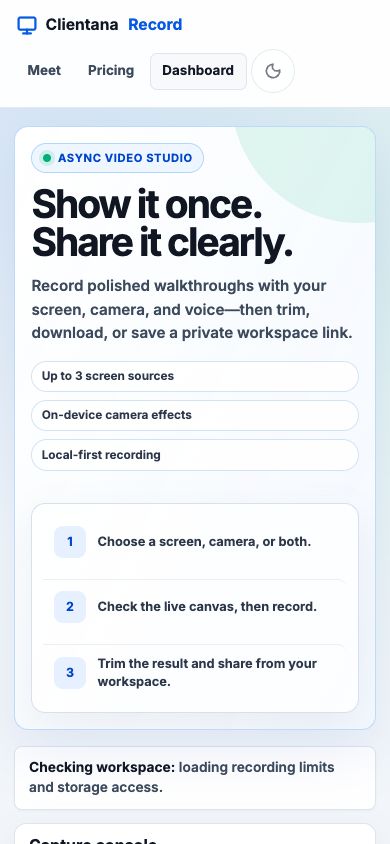
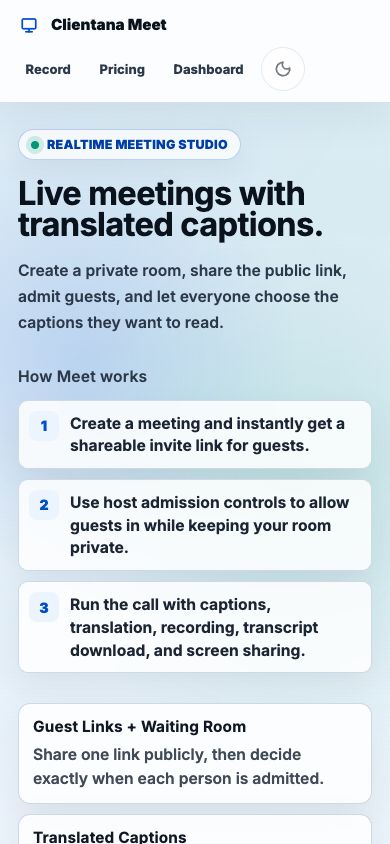
Know where you are—and what every surface is for.
These captures come from the current Clientana product, not conceptual wireframes. Each screen is paired with the decisions a user makes there.
Product entry
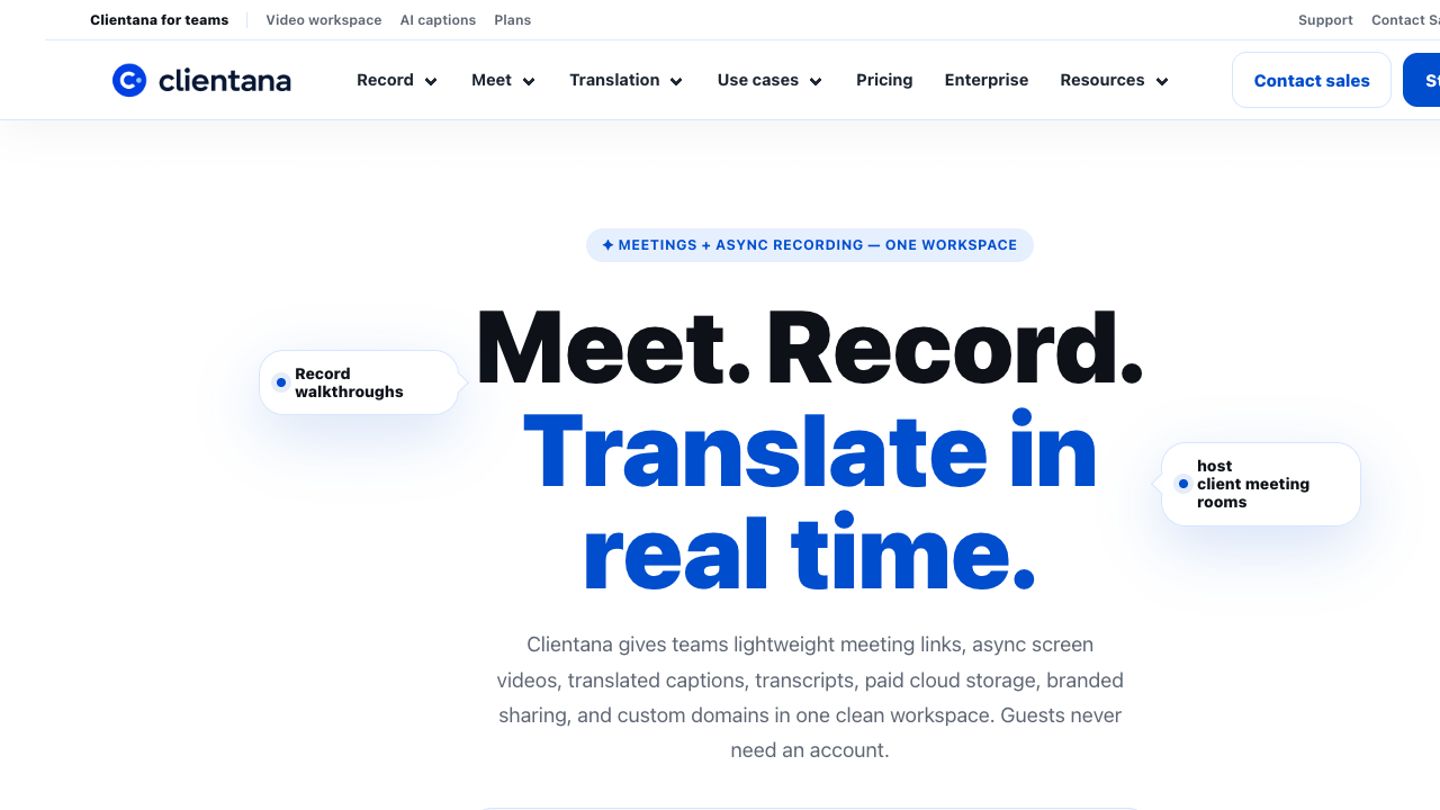
- 1Product navigation
Record and Meet have dedicated product pages while translation and use cases explain shared capabilities.
- 2Primary promise
The hero establishes that live meetings and async recording share one workspace and one translation story.
- 3Low-friction entry
A guest can start a meeting or recording without first creating an account.
Record studio
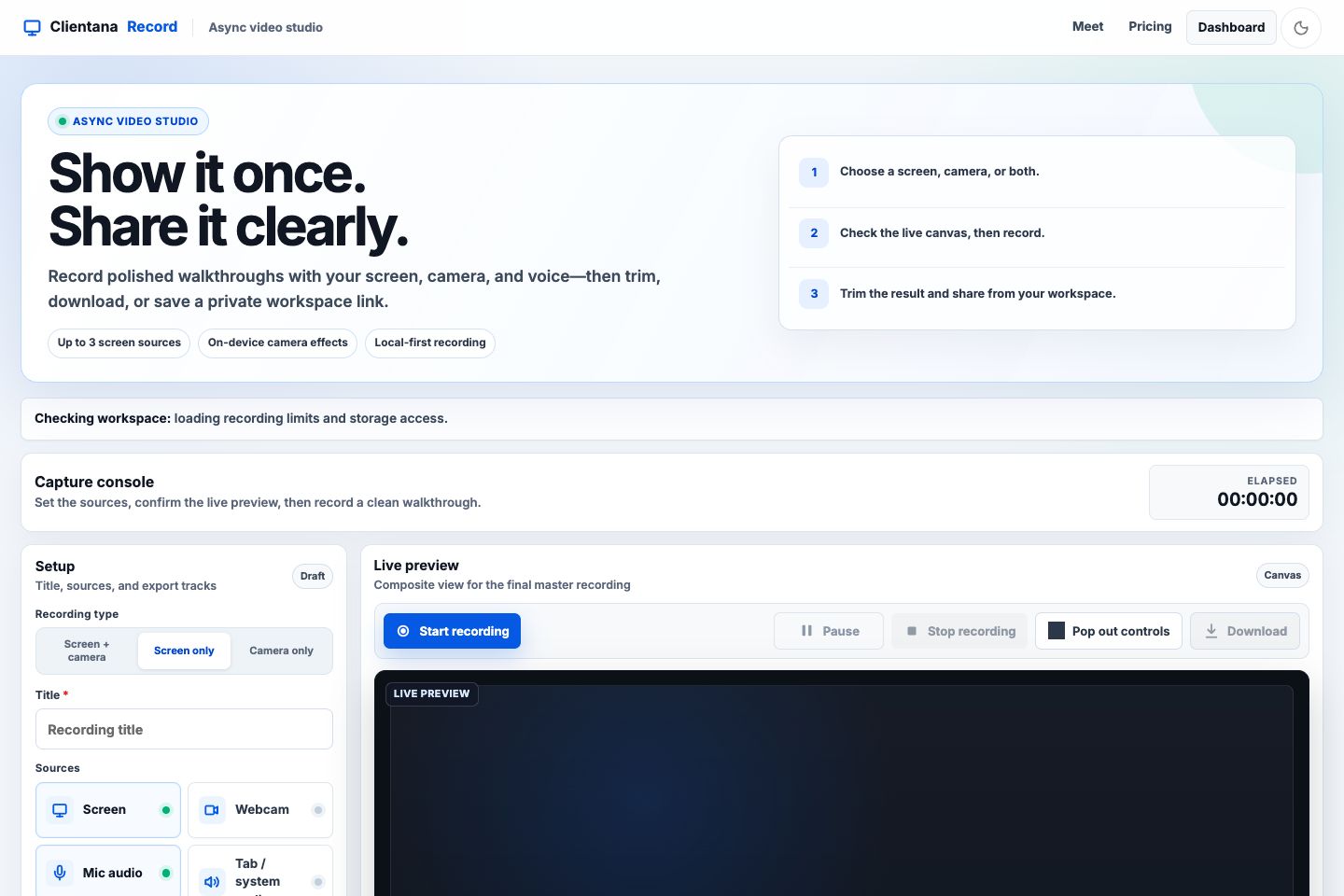
- 1Recording type
Choose the fastest preset, then fine-tune individual screen, camera, microphone, and system-audio sources.
- 2Multiple source support
Add and refresh screen sources before the capture begins; the product supports up to three screen or tab sources.
- 3Master preview
The live canvas represents the compiled video. Optional separate source files support advanced editing later.
- 4Local-first status
The workspace strip explains whether the current session can save to cloud storage or must be downloaded locally.
Meet lobby
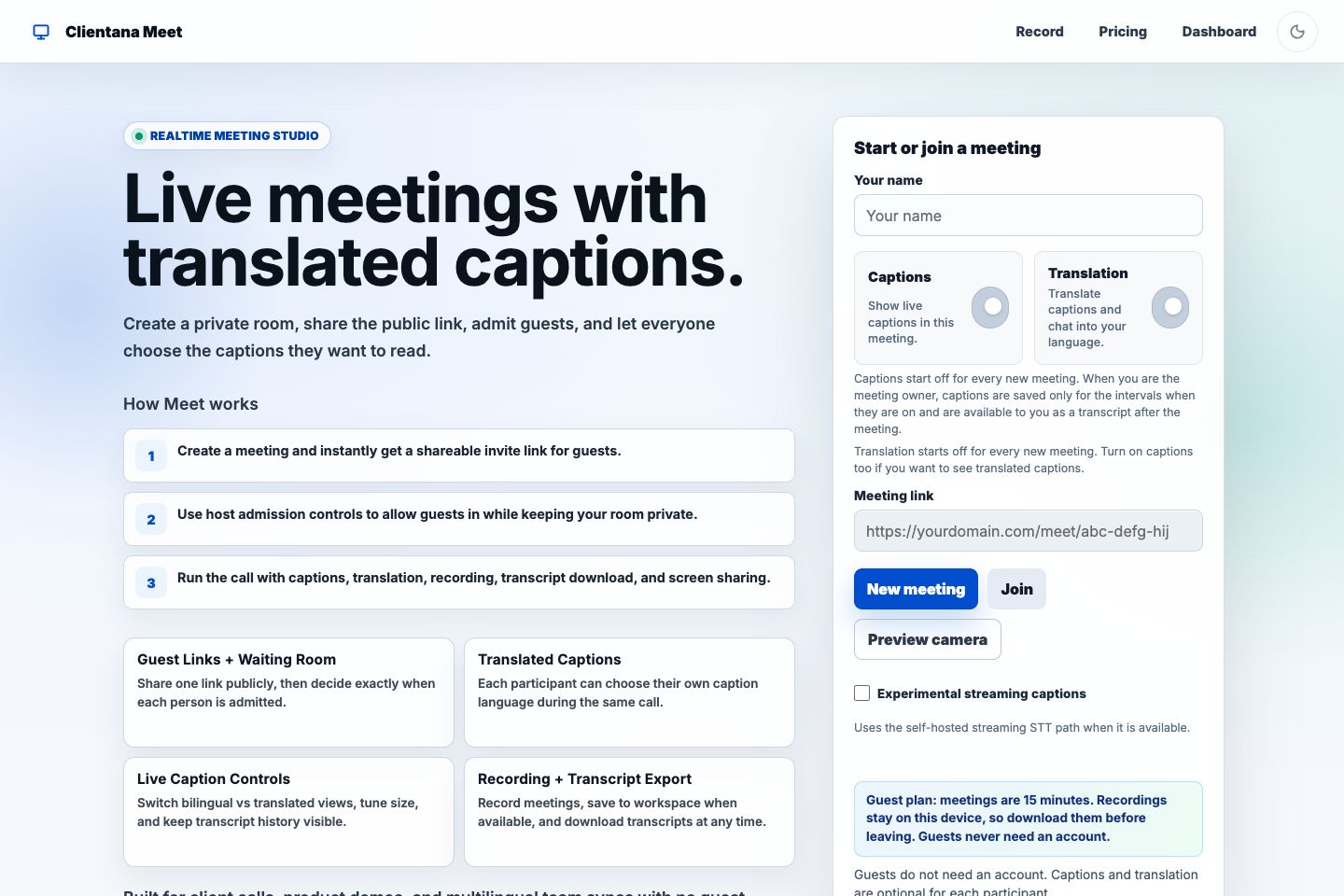
- 1Identity
The participant enters the display name other people will see in the room.
- 2Accessibility preferences
Captions and translation are independent choices and begin off for each new meeting.
- 3Room action
Create a new room or enter an existing meeting link. Hosts receive a separate private admission URL.
- 4Plan expectations
The lobby states the meeting duration and whether recordings remain local before the call begins.
Live room
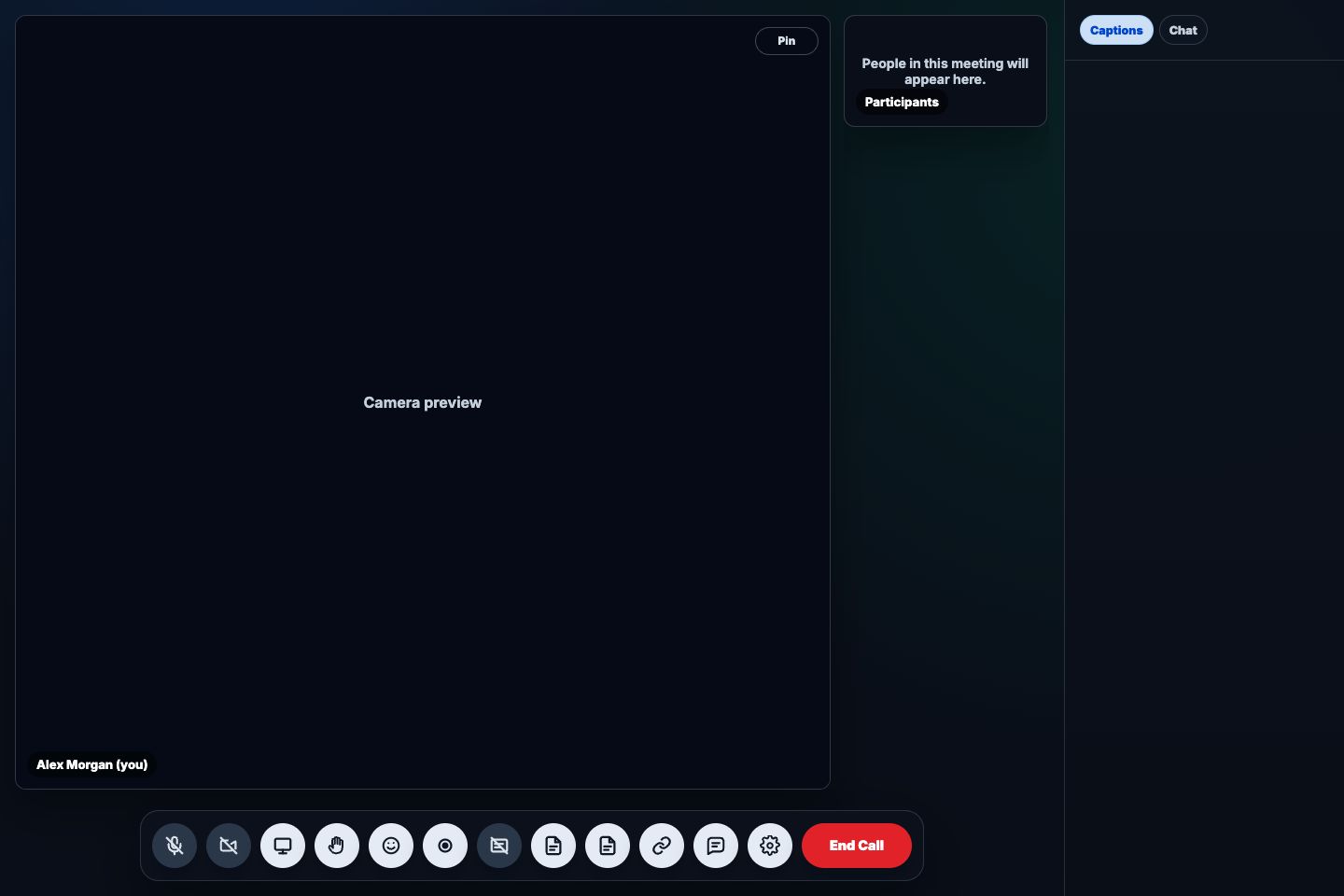
- 1Stage
Pinned video or screen sharing occupies the primary visual area.
- 2Participant context
The roster shows who is present while host admission notifications manage the waiting room.
- 3Meeting controls
Microphone, camera, screen share, hand raise, reactions, recording, captions, transcript, chat, more options, and End Call live in one dock.
- 4Meeting activity
Captions and chat use separate tabs so the conversation and translated text remain readable.
Account and plans
Mobile web