The product must explain itself on every screen size.
Responsive layout is only one part of accessibility. Clientana also has to explain browser permissions, device limitations, captions, translation, recording state, and plan boundaries before they become surprises.
Current mobile web behavior
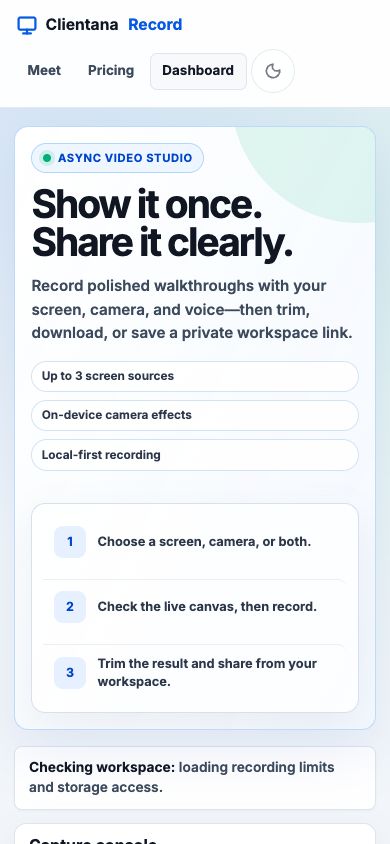
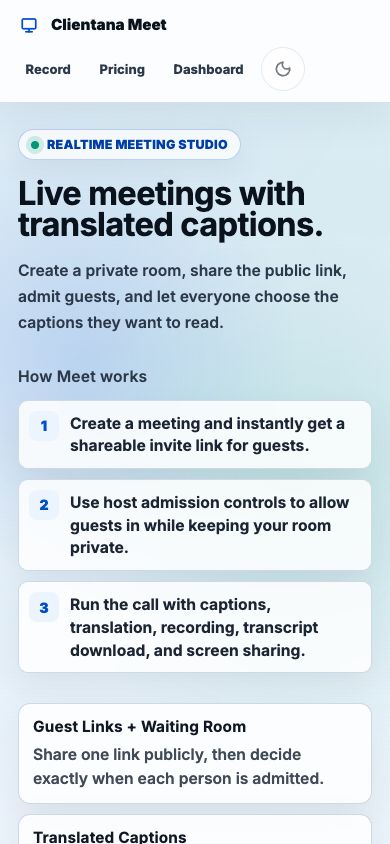
Responsive principles
- 1Keep the primary action visible
Record, New meeting, Join, and End Call must remain easy to find without depending on hover.
- 2Stack before shrinking
Workflow cards, side panels, screenshots, and architecture diagrams become one column instead of compressing text into unreadable widths.
- 3Preserve media priority
During a meeting, the active stage or shared screen stays dominant while participants and activity panels yield space.
- 4Use touch-sized controls
Media toggles, tabs, share controls, and form fields require comfortable spacing and visible pressed/disabled state.
- 5Explain unsupported capabilities
A missing screen-share or system-audio capability should appear as an explicit device/browser limitation, not a dead control.
Browser permissions
Camera, microphone, screen sharing, downloads, and local model execution are browser-controlled capabilities. The UI should distinguish:
- Not requested: the user has not interacted with the feature yet.
- Prompt expected: a user action will trigger a browser permission dialog.
- Allowed: the stream or capability is available.
- Denied: the browser or operating system blocked access.
- Unavailable: the device, browser, origin, or policy does not support the capability.
Record and Meet must ask only when the user initiates the related action. Error guidance should tell the user which site setting to change and whether a reload is required.
Keyboard and semantic interaction
- Record exposes shortcuts for start, pause, and finish while preserving clickable controls.
- Buttons use visible labels or accessible names, including media toggles that change between Enable and Disable states.
- Meet activity uses tabs for Captions and Chat, with selection state exposed to assistive technology.
- Forms pair labels with fields for identity, meeting URLs, titles, passwords, and settings.
- Disabled states communicate why an action is unavailable through nearby copy, tooltip text, plan guidance, or processing status.
Captions and translation
Captions are an accessibility feature first and a transcript input second. Each participant can control the language they read. Translation should never silently replace the original-language context when the user needs both; the meeting UI provides bilingual and translated display modes.
Visual QA checklist
- Test public, product, account, and docs pages at desktop, tablet, and narrow mobile widths.
- Verify no horizontal overflow at the root page level.
- Verify sticky headers, bottom call controls, dialogs, and side panels do not obscure the primary task.
- Verify focus indicators, selected tabs, pressed toggles, disabled controls, success states, and errors remain visible in light and dark themes.
- Verify screenshots and diagrams include meaningful alternative text and do not carry essential meaning only through color.
- Verify a keyboard user can reach login, recording controls, meeting controls, share settings, and dialog dismissal.
- Verify caption text is readable over live video and high-motion screen shares.