Start with a meeting or a recording.
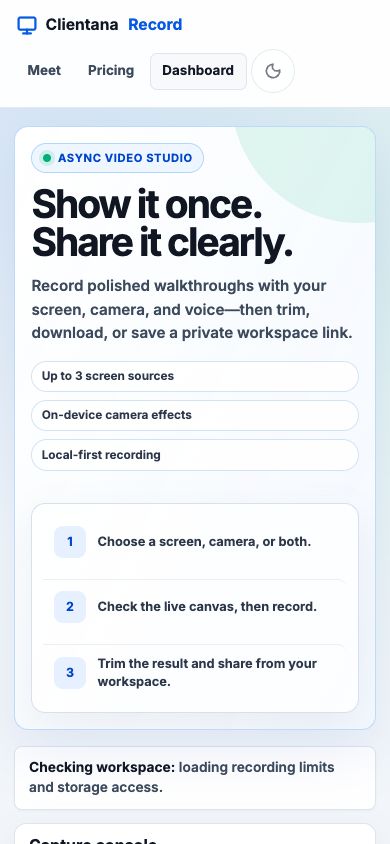
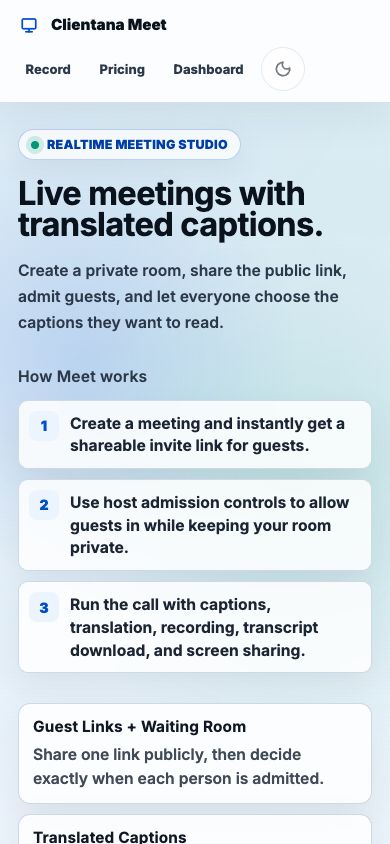
Clientana helps teams record walkthroughs, host meetings, generate captions, translate conversations, and share recordings from a workspace.
First session checklist
- Sign in and confirm the active workspace in the dashboard.
- Choose Record to capture a screen, camera, microphone, and supported system audio.
- Choose Meet to start or join a meeting room.
- Confirm the browser permission prompts for camera, microphone, and screen sharing.
- Upload or finish a recording before closing the tab.
- Share the recording link only with the intended audience.
Browser permissions
Most setup issues come from browser permissions. If camera, microphone, or screen sharing is blocked, open the browser site settings for clientana.com, allow the required device, and reload the page. On mobile browsers, screen sharing may be unavailable even when camera and microphone work.
Workspace context
Recordings, meeting history, billing, custom domains, and member permissions belong to the active workspace. If something appears missing, check whether the user is in the expected workspace before assuming data loss.
What support may ask for
Support may ask for account email, workspace name, recording link, meeting room name, approximate time, browser and operating system, and the exact error text. Support will not ask for passwords, API keys, recovery codes, or payment card numbers.